

Having a professional email address (e.g., you@yourdomain.com) builds trust with clients and strengthens your brand. If you already own a domain name and business email, the next step is to configure it inside Microsoft Outlook so you can send, receive messages, and get notified seamlessly on both mobile and desktop.
This guide will show you how to set up your custom email in Outlook mobile and desktop apps, step by step.
What’s a Custom Email
A custom email is an email address with your website’s domain name, e.g. john@yourwebsite.com. When you buy a domain name you can host custom emails from it.
When you use @gmail.com, you’re using Google’s gmail.com domain to host your emails. If you use @outlook.com you’re using Microsoft’s domain to host emails.
Pros of Custom Emails
- Custom emails come with your brand/ domain name.
- Professional branding – Emails sent from your domain look credible
- You have more control over space allocation, sending limits etc
What is Outlook & Why Use Outlook for Custom Emails?
Most custom emails are usually accessed in a browser using custom email openers (clients) such as Roundcube. However, you cannot receive real-time notifications of new emails; you have to open the browser and check for new emails.
Outlook is a communication and productivity app made by Microsoft that is mainly used for sending, receiving and managing email. It also includes calendar, contacts, tasks, notes and scheduling features all in one place.
When you add your custom email to Outlook, you will be able to receive email notifications from your device.
You can also send emails through Outlook as well.
Outlook keeps your mail, calendar, and contacts updated across desktop and mobile.
What You Need Before Setup
- A registered domain with email hosting (e.g., from cPanel, Google Workspace, or Microsoft 365).
- Your email login details:
- Email address, e.g.you@yourdomain.com
- Password
- Incoming mail server (IMAP/POP)
- Outgoing mail server (SMTP)
- Port numbers (often IMAP: 993, SMTP: 465/587
You can find these email details in your control panel, such as CPanel, DirectAdmin, Plesk, etc. How you get the details vary from panel to panel. You may ask your hosting provider if you don’t know.
Setting Up Custom Email in Outlook Desktop (Windows/Mac)
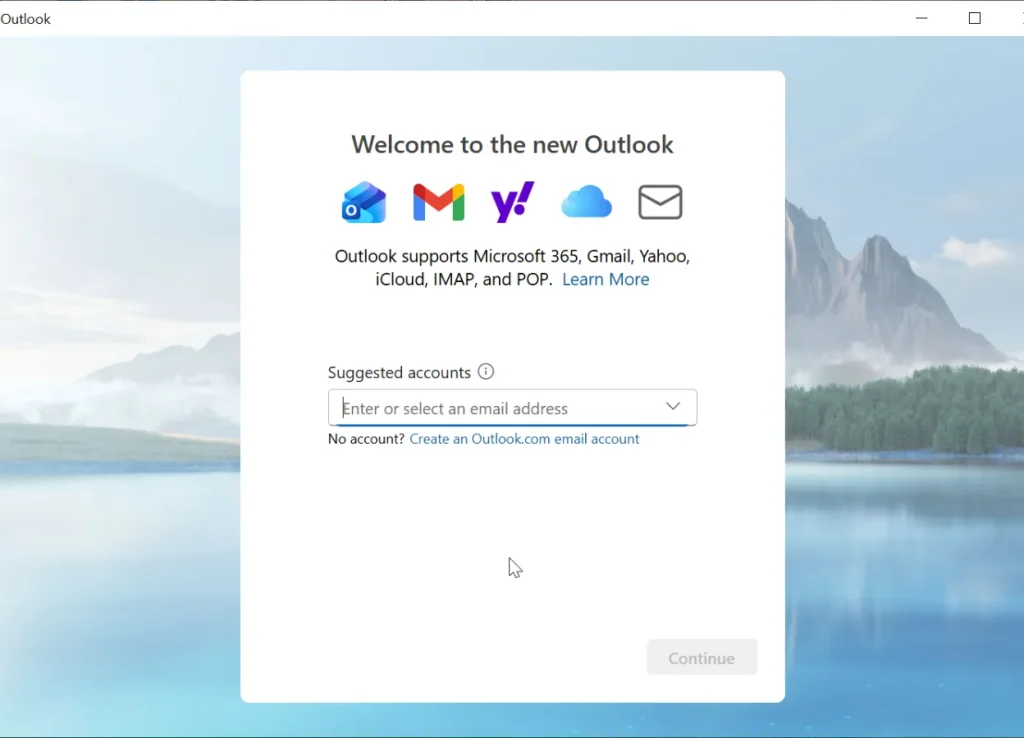
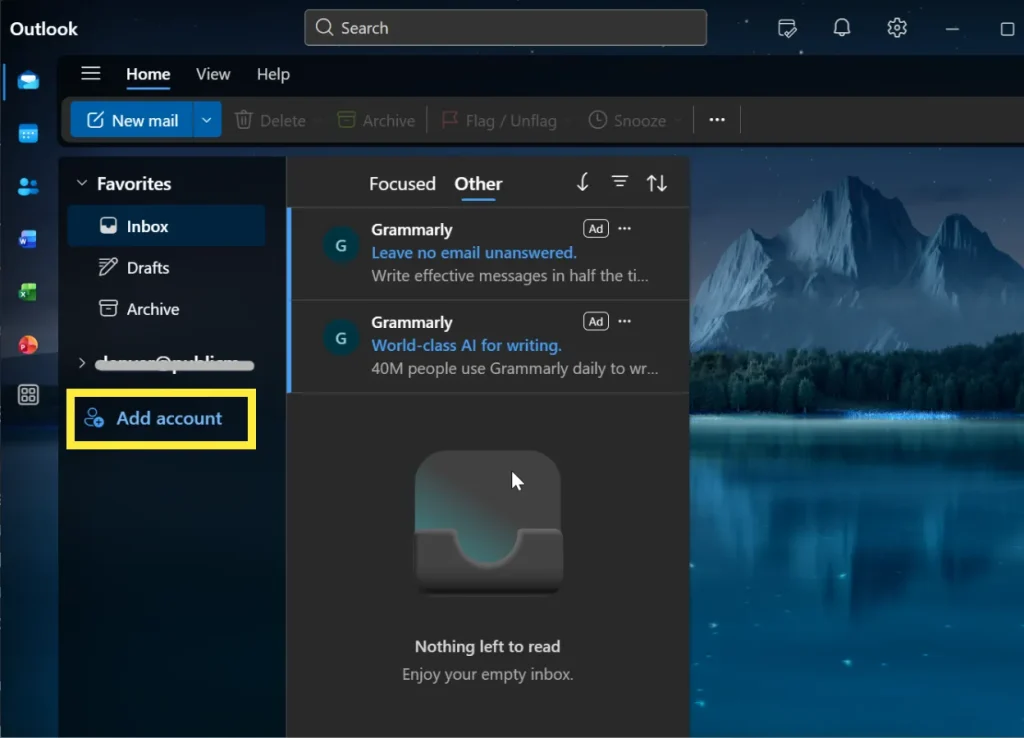
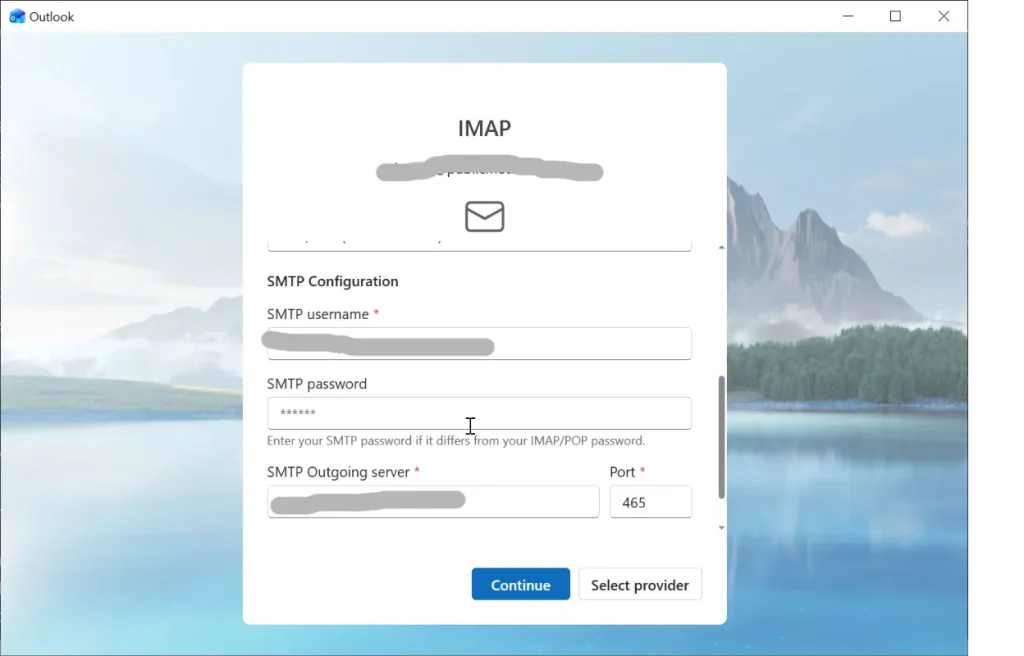
- Open Outlook on your computer.
- Go to File > Add Account. If there’s no account, enter a new email to link to Outlook.
- Enter your custom email address and click Connect.
- Choose IMAP or POP (IMAP is selected by default).
- Enter your email password and click continue. If you need to enter different mail server settings, click Show More. Default values are filled in, including the password you entered above. If they’re different, change them.
- Incoming Mail (IMAP): Most mail domains typically start with mail, e.g
- . mail.yourdomain.com, Port 993, SSL required
- Outgoing Mail (SMTP): mail.yourdomain.com, Port 465/587, SSL/TLS required for security.
- Click Continue. If it shows a Sync notice, again click continue.
Setting Up Custom Email in Outlook Mobile App (iOS/Android)
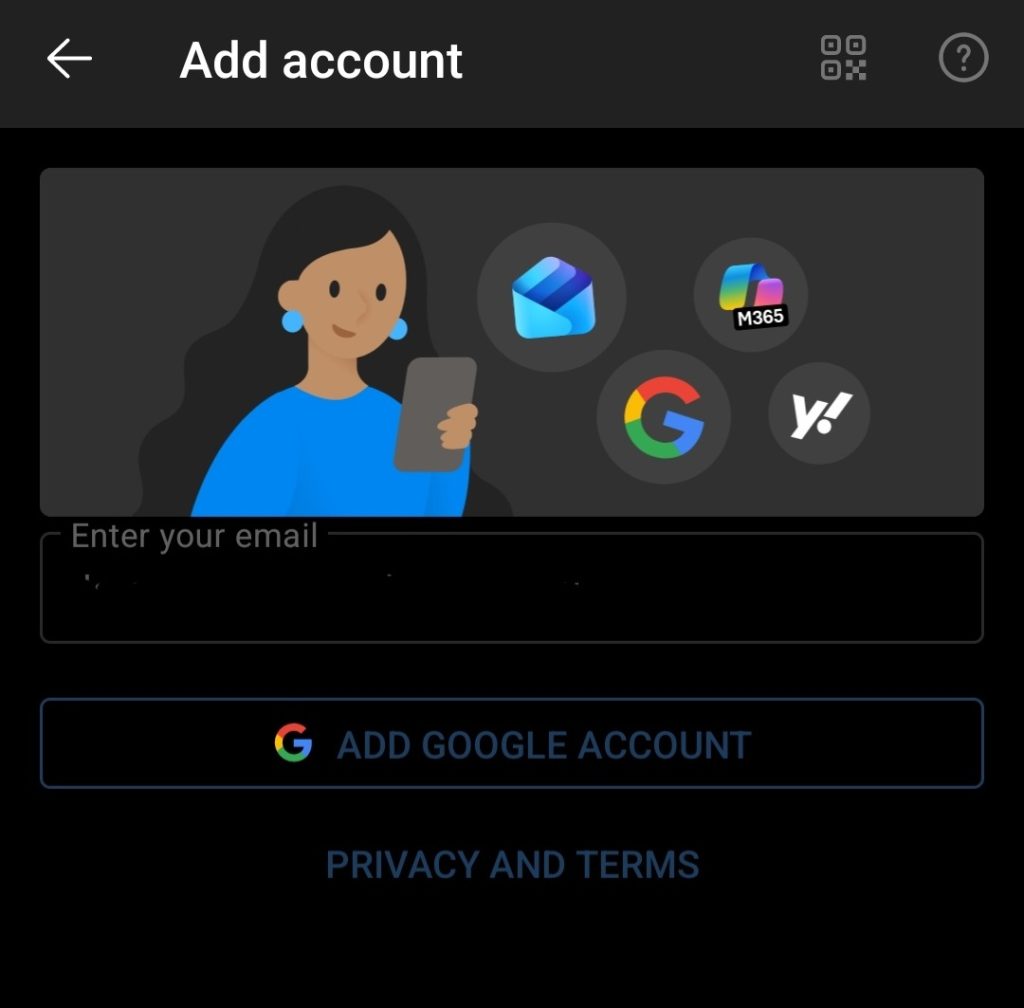
- Download the Outlook app from the App Store or Google Play.
- Open the app and tap Add Account.
- Enter your custom email address.
- Tap Set up account manually.
- Choose IMAP.
- Enter your email password.
- Click Advanced Settings to enter mail server settings if they’re different from defaults:
- IMAP Host: mail.yourdomain.com, Port 993, SSL
- SMTP Host: mail.yourdomain.com, Port 465/587, SSL
- Tap Sign In or click the Checkmark in the top right
Your custom email will sync with Outlook mobile.
Troubleshooting Tips
- Double-check your username (full email address) and password
- Ensure SSL/TLS is enabled for security.
- Enter the correct port numbers
- Contact your hosting provider if unsure about server details.
- If you use Microsoft 365 for business email, Outlook may auto-detect settings.
Final Thoughts
Setting up a custom domain email in Outlook mobile and desktop allows you to be notified of new emails in real-time and helps streamline communication.
Need Helping Setting Up Your Business Emails